
Objective: Learn how your end users can view all of their transactions with Stripe Checkout Pro Manager from their WordPress admin area.
Note: Your end user must have a WordPress account and they must be signed into that account prior to making the purchase on your website or it will not be displayed to them though it will display in the admins view. Just as with any online shopping experience.
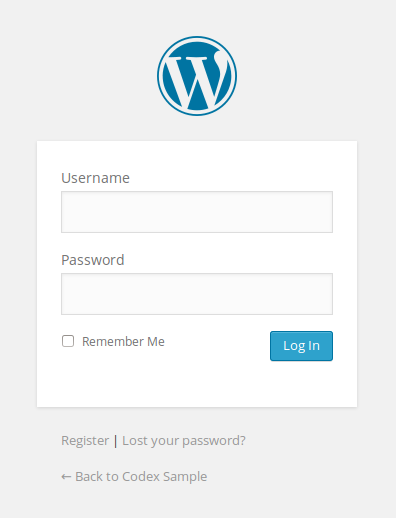
Step 1 The end user must sign into her account.
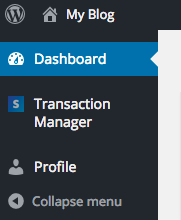
Step 2 Click the “Transaction Manager” menu option.
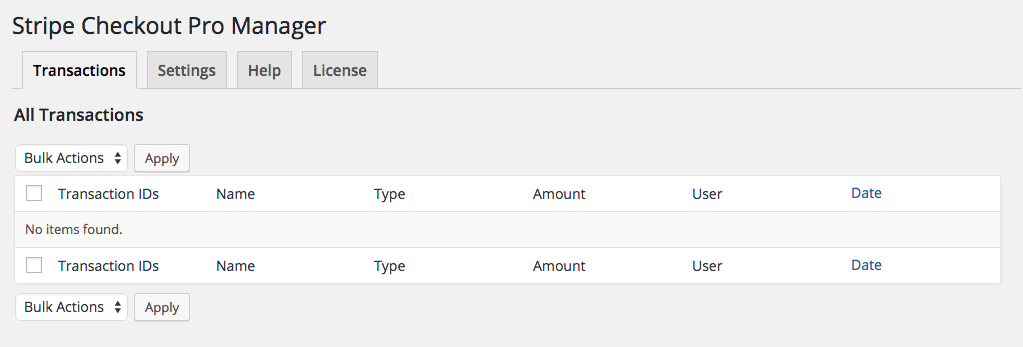
Step 3 You end user should see a table that contains no transaction information unless she has already signed in and completed a transaction.
Note: Details will only appear after this plugin has been installed, the end user is signed in and completed a transaction.
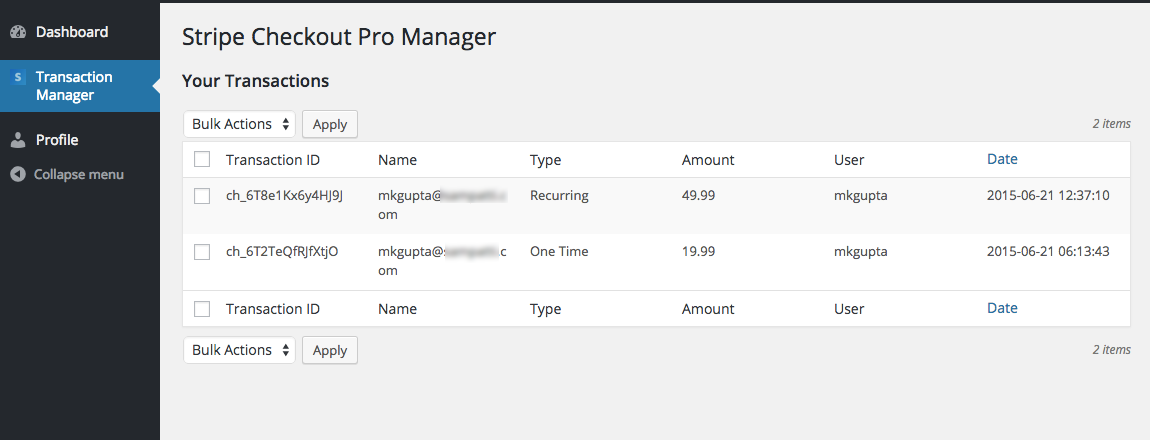
Step 4 After a transaction has been made, the details should show on this page.
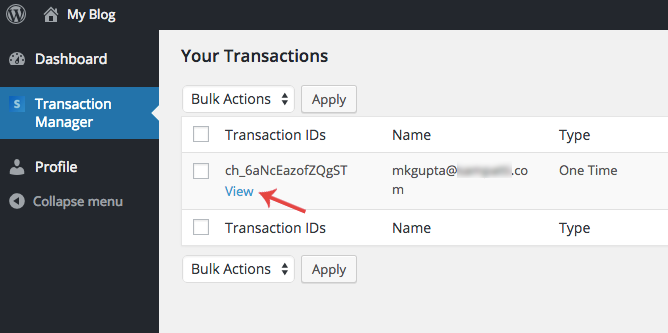
Step 5 Roll your mouse over the transaction on that row and you should see the “View” button, which when clicked will take you to the transaction details page.
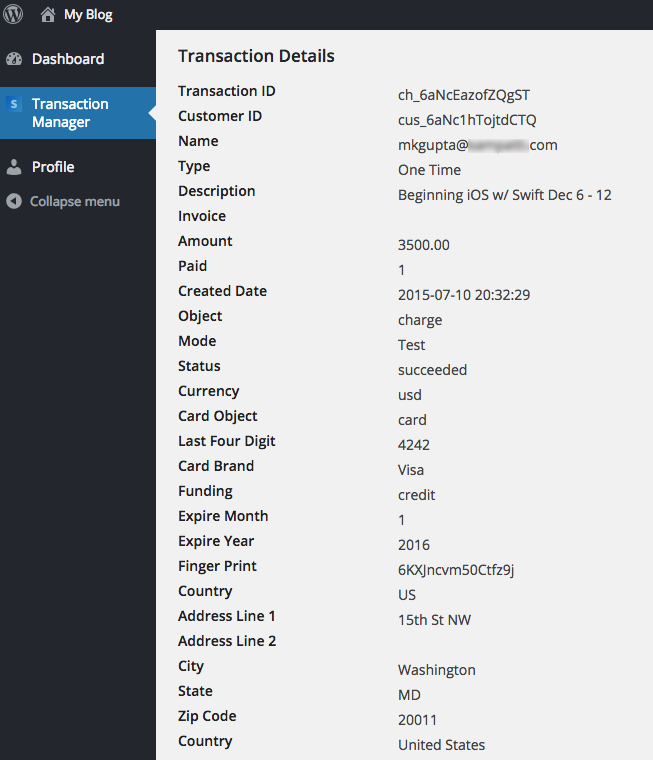
Step 6 All of the available data for the transaction should be displayed.
Final Step Your task should now be complete. If not review the steps and try again.